How to remember your gym locker number on iPhone
Before you walk away from the locker, type or scan its number in LockerThing. When you come back, check the number in the app, on a Home Screen widget, or in a Lock Screen Live Activity.
-
Scan it
Open LockerThing and type the locker number, such as 222. Use the keypad anywhere cameras are restricted. Where cameras are allowed, point your iPhone at the digits and hold Read. Check the number before saving.
-
Lock it
If your locker has a combination, add it separately. Reveal it in the app with Face ID, Touch ID, or your device passcode. Your combination stays off widgets and the Lock Screen.
-
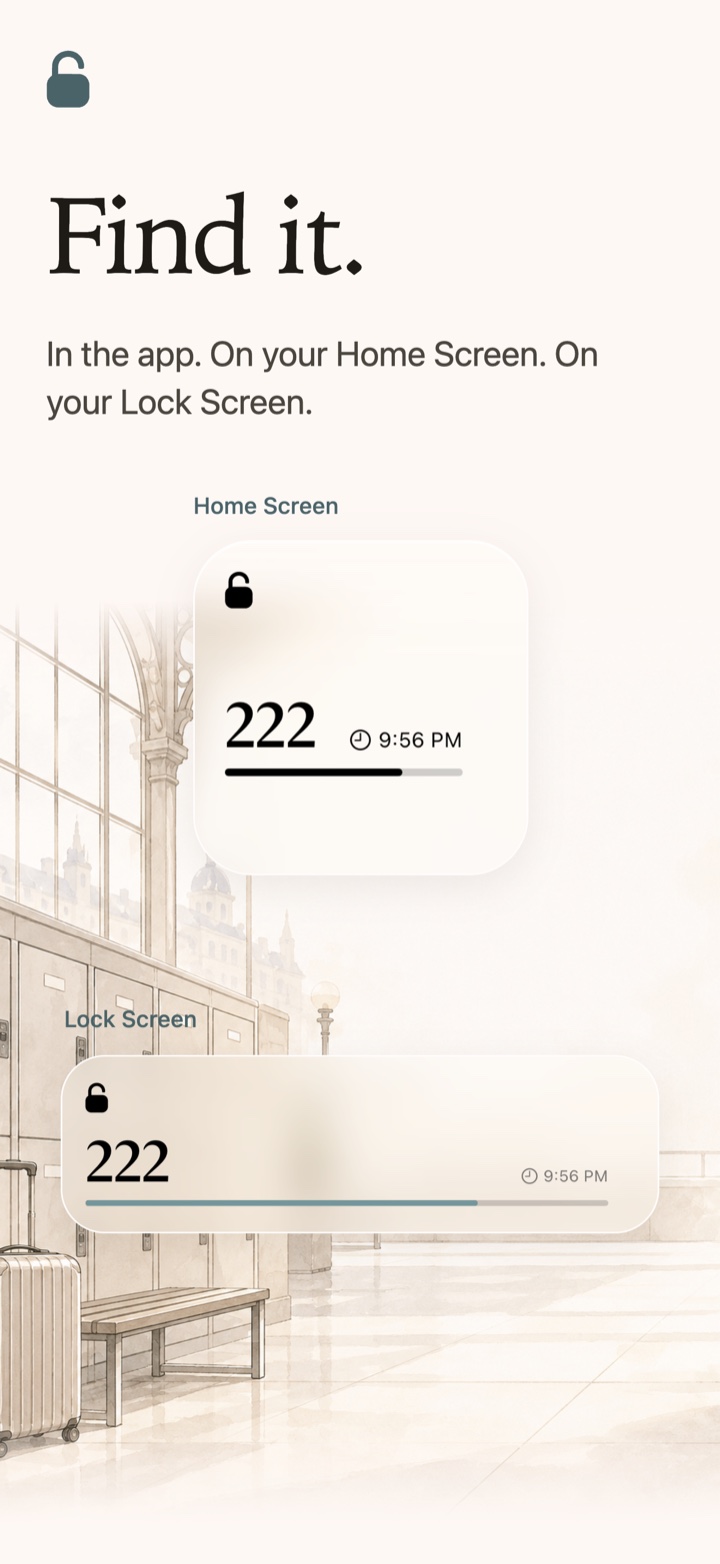
Find it
For a Lock Screen Live Activity, turn on Lock Screen under Recall in LockerThing Settings, then save your locker. For the Home Screen, touch and hold an empty area and add Locker from the widget gallery. If you’ve hidden your locker number, open the app to reveal it.
Use it at the gym, pool, or spa
LockerThing works in airplane mode. You can scan or type a number, save it, and look it up again even at a gym with no signal. The optional nearby-place search uses Apple Maps and requires internet access. LockerThing is free for iPhone and requires iOS 16.4 or later.

Common questions
- How do I show my number on my Lock Screen or Home Screen?
- Does LockerThing work in airplane mode?
- Can I use LockerThing without a camera?
- How does LockerThing protect my code?
- Can my locker number clear automatically?
- What are the minimum scanning requirements?