
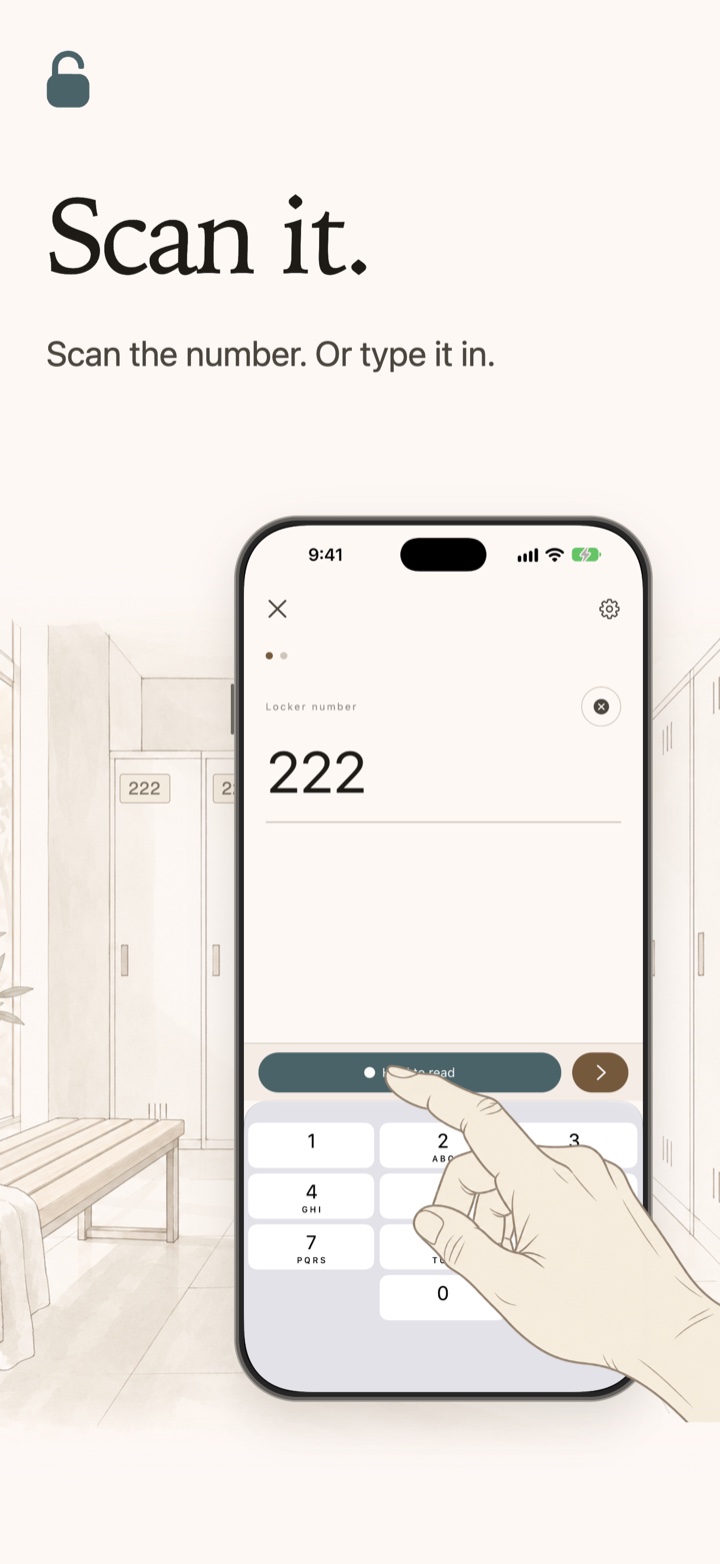
Scan it
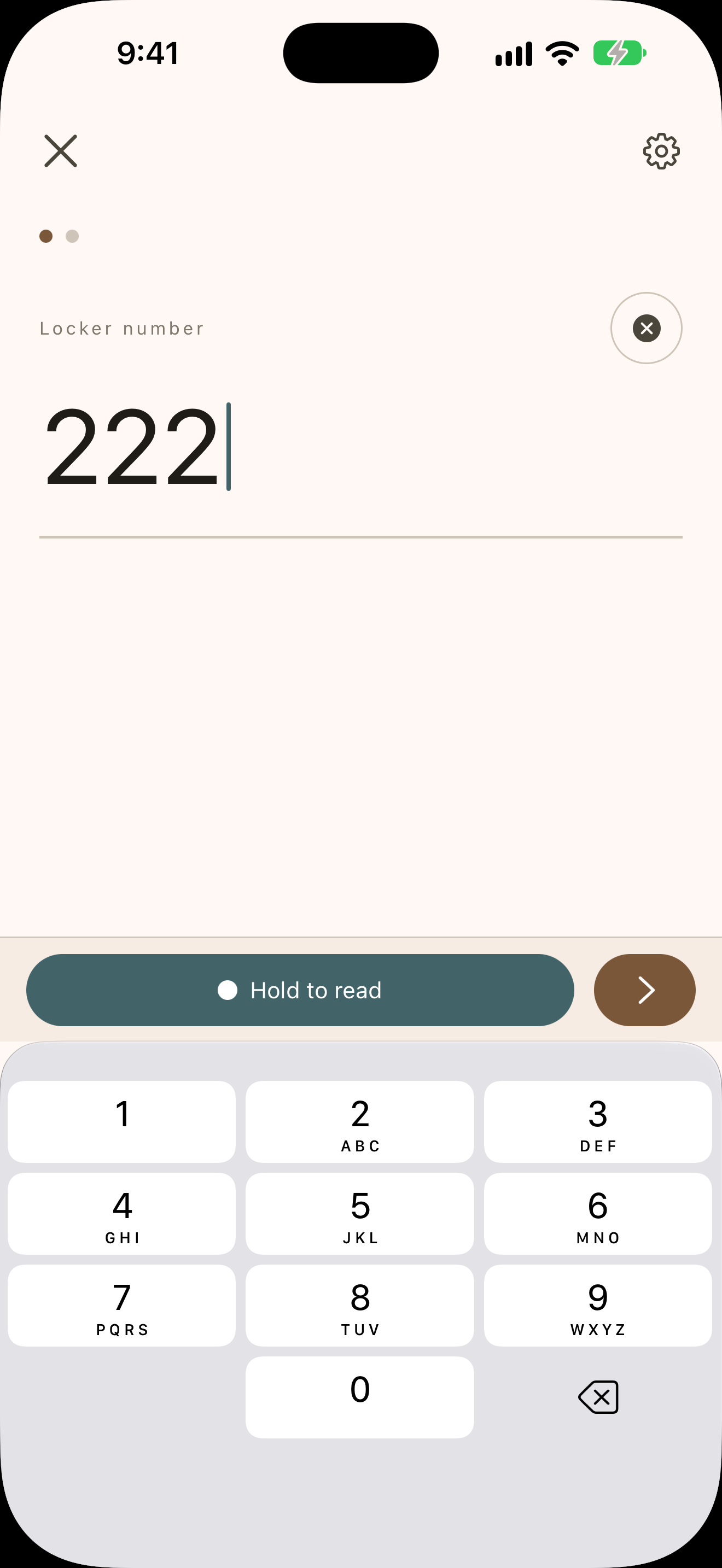
Point the camera at the number or type it in yourself.
LockerThing is a free iPhone app that saves your gym, pool, or spa locker number so you can find it on your Lock Screen.
For gym days, pool visits and anywhere you’re handed a locker.
Point the camera at the number or type it in yourself.
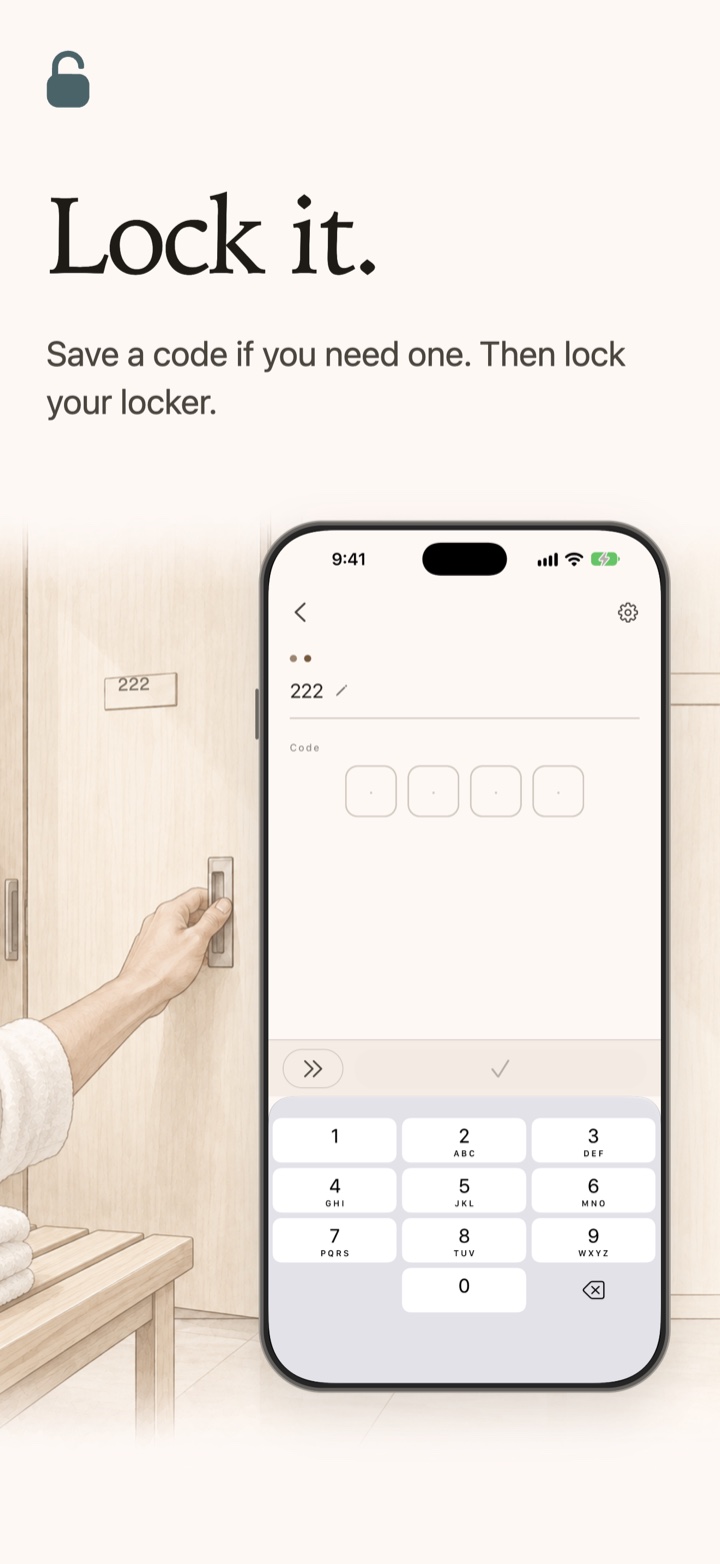
Add an optional code and reveal it with Face ID, Touch ID, or your device passcode.
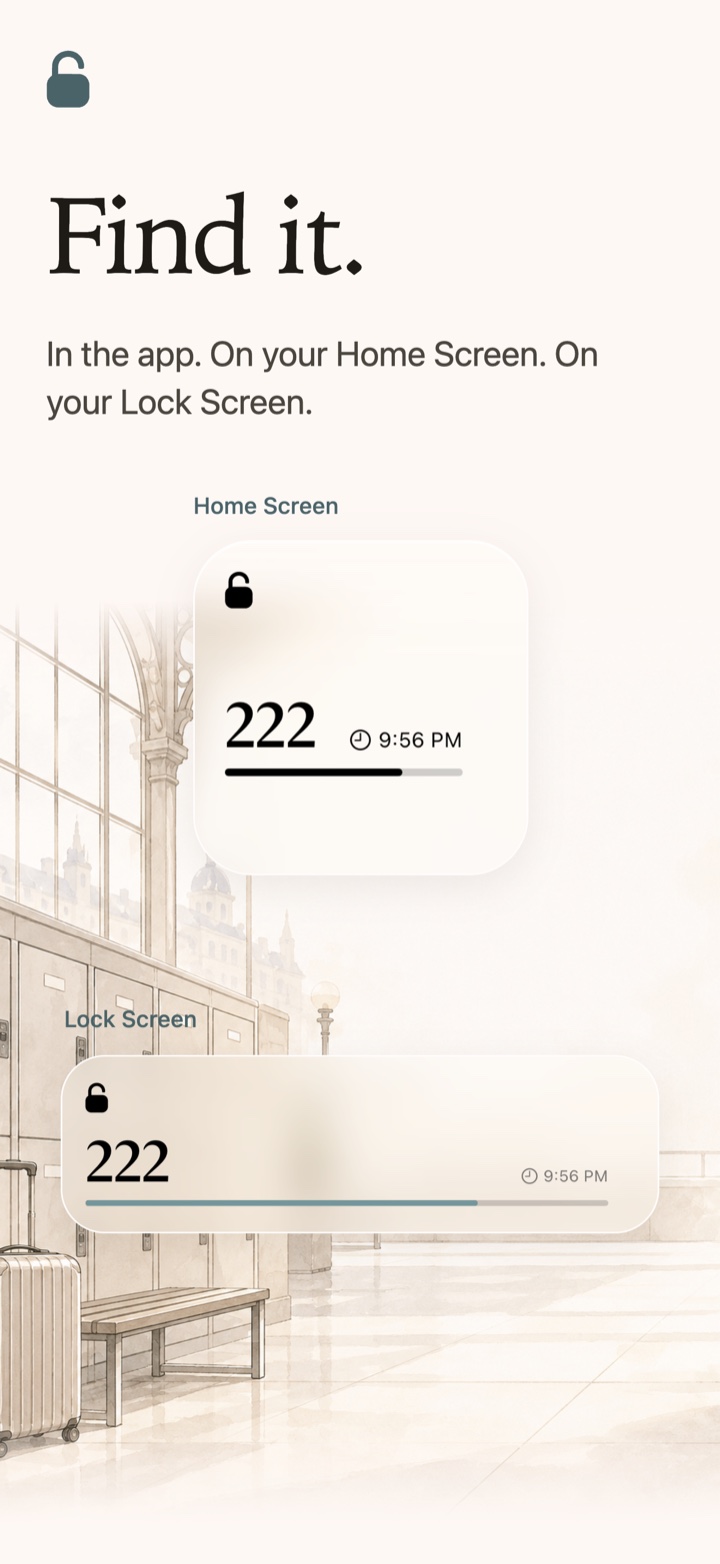
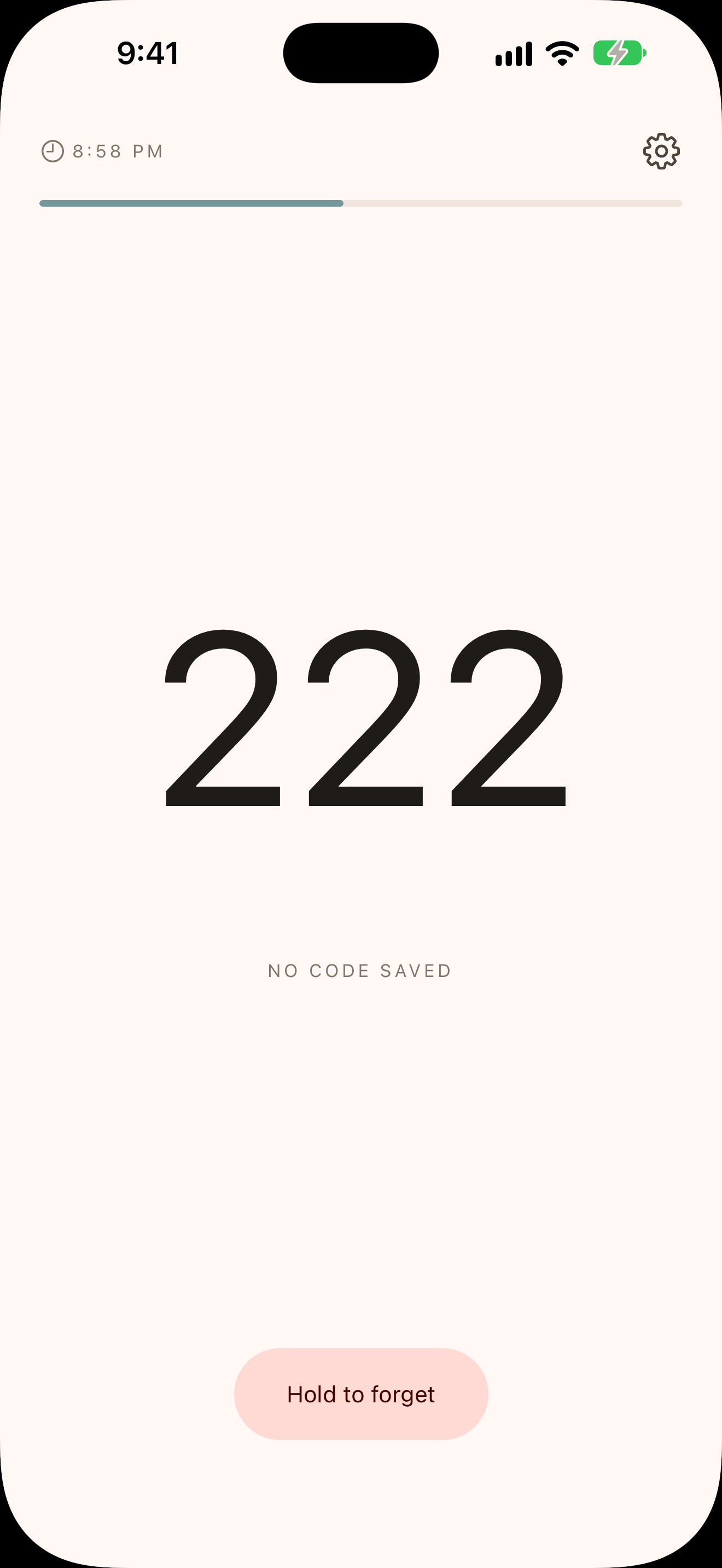
Check the app, a Home Screen widget, or a Lock Screen Live Activity.
Hold Read to scan the digits or type them in. Look up the number later in the app, a Home Screen widget, or a Lock Screen Live Activity. Supported iPhones can also show it in the Dynamic Island.
In LockerThing Settings, turn on Lock Screen under Recall. Save a locker to start its Live Activity. If prompted, allow Live Activities.
For the Home Screen, touch and hold an empty area, open the widget gallery, and add the Locker widget. If you chose to hide your locker number in Keep hidden, open LockerThing to reveal it. Hidden numbers and combinations stay off both screens.
Yes. In airplane mode you can scan or type your locker number, save it, and find it again on your iPhone. The optional nearby-place search uses Apple Maps and needs an internet connection.
Manual entry is always available for locker numbers and codes. Use it whenever you prefer or when a venue restricts cameras.
LockerThing stores the optional combination in the iPhone Keychain. Face ID, Touch ID, or the device passcode can protect both the code and a locker number you choose to hide. Codes and hidden locker numbers stay off widgets and the Lock Screen.
Your locker number and expiration time are stored on your iPhone. Read the Privacy Policy.
LockerThing reads live camera frames on your iPhone while you hold Read. It can fill in the digits before you save them. Camera frames stay on the device and aren’t saved to Photos.
Use it with temporary lockers at gyms, pools, spas, schools, and similar places.
Yes. Add lockers and swipe between them in the app. Each locker can have its own number and optional combination.
Clear the current locker before you leave to remove its number and any saved code.
Choose an expiration time and LockerThing will clear the locker for you when that time arrives.
Scanning works on iPhone 8, iPhone 8 Plus, iPhone X, iPhone SE (2nd generation), and newer compatible models running iOS 16.4 or later. It needs a working rear camera and camera access for LockerThing. If your iPhone can run LockerThing but scanning is unavailable, you can still type your locker number and optional code.
LockerThing works without an account, ads, analytics, or cloud storage in the iPhone app.
LockerThing is free, including scanning. There are no subscriptions or in-app purchases.
LockerThing grew out of a camera roll full of locker-number photos. It gives those numbers a place to live until you’re done with them.